Save a bookmark
- Open the page in Chrome.
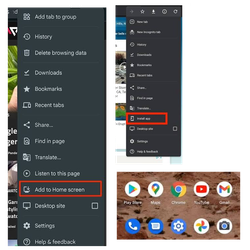
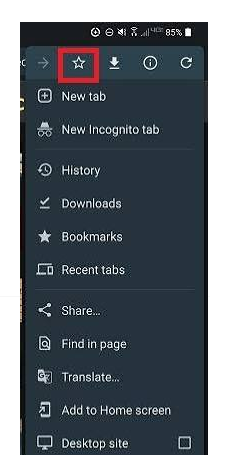
- Tap the three-dot menu (⋮) at the top right (or bottom, depending on your layout).
- Tap the star icon (☆) at the top of the menu. A message confirms it’s saved.
Choose a folder or rename it right away
- Tap Edit on the confirmation message that appears at the bottom, then change the name or folder and tap the back arrow to save.
Find your bookmarks
- Tap ⋮ → Bookmarks.
- Open Mobile bookmarks, or another folder, to see your saved pages. Bookmarks synced from a computer appear under Bookmarks bar or Other bookmarks.
Edit, move, or delete one later
- Go to ⋮ → Bookmarks.
- Tap the three dots next to the bookmark.
- Choose Edit, Move, or Delete.
Remove the bookmark from the page itself
- Open the page, tap ⋮, then tap the filled star (★) and choose Edit → Delete (the star may read “Edit bookmark” on some versions).
Tip: Sign in to Chrome with your Google account and turn on sync (Settings → your account → Sync) so your bookmarks appear on all your devices.
More