WordPress: Other blocks fade or blur on the editing screen, only the selected block stands out: That’s Spotlight Mode. What It Is, How It Works, and How to Disable It
WordPress provides several built-in editing features designed to make content creation easier, more organized, and less distracting. One of these features is Spotlight Mode, a viewing option in the Gutenberg Block Editor that helps users concentrate on the block they are currently editing.
Although Spotlight Mode can be useful when working with complex WordPress layouts, it can sometimes confuse users who are unfamiliar with its behavior. When enabled, it visually fades other blocks on the editing screen, making the selected block stand out. As a result, paragraphs that are not currently selected may appear faded or blurred, leading some users to believe that something is wrong with the WordPress editor.
Understanding how Spotlight Mode works, why WordPress includes it, and how to disable it can help prevent unnecessary troubleshooting and improve the content editing experience.
What Is Spotlight Mode in WordPress?
Spotlight Mode is a built-in feature of the WordPress Gutenberg Block Editor that visually emphasizes the block currently being edited while reducing the visual prominence of other blocks.
WordPress introduced this feature to help content creators concentrate on individual blocks without being distracted by surrounding content.
For example, imagine editing a WordPress article containing several paragraphs, headings, images, lists, and other blocks. When Spotlight Mode is enabled, selecting a paragraph makes that paragraph the primary visual focus. Other blocks become faded, allowing you to concentrate on the selected paragraph.
This behavior is intentional. It is not necessarily a sign of a WordPress core malfunction, a browser rendering problem, or a theme-related CSS conflict.
Spotlight Mode is particularly useful when working with long articles, complicated page layouts, and posts containing numerous Gutenberg blocks.
How Spotlight Mode Works in the Gutenberg Editor
The Gutenberg Block Editor organizes WordPress content into individual blocks. Each paragraph, heading, image, list, table, and other supported content element can exist as a separate block.
Spotlight Mode changes how these blocks appear during editing.
When activated, the editor highlights the currently selected block while visually de-emphasizing the remaining blocks.
The main characteristics include:
Selected block emphasis: The block currently being edited remains visually prominent.
Reduced visibility of other blocks: Unselected blocks appear faded compared with the active block.
Improved editing concentration: The visual distinction helps users focus on one content element at a time.
No changes to published content: Spotlight Mode is an editor viewing preference, not a content formatting or publishing feature.
It is important to understand that Spotlight Mode does not delete, hide, or modify the actual content of other blocks. It simply changes their appearance within the editing interface.
Why WordPress Paragraphs Appear Blurry When Editing
One of the most confusing effects of Spotlight Mode is that paragraphs outside the selected block can look blurry, faded, or less readable.
For example, suppose you open a WordPress article containing ten paragraphs. When you click the fourth paragraph, that paragraph remains clearly visible while the surrounding paragraphs become visually de-emphasized.
A user unfamiliar with Spotlight Mode might interpret this behavior as:
A WordPress editor display problem.
A paragraph formatting issue.
A problem with the active WordPress theme.
A browser graphics or rendering issue.
A Gutenberg CSS conflict.
A WordPress core bug.
However, if Spotlight Mode is responsible, there is no underlying paragraph formatting problem to fix.
The editor is simply applying its intended visual emphasis to the selected block.
This distinction is important because troubleshooting the wrong cause can lead to unnecessary CSS modifications, plugin deactivation, theme changes, or WordPress file editing.
Before making technical changes, checking the editor’s viewing preferences is a sensible first step.
How to Disable Spotlight Mode in WordPress
Disabling Spotlight Mode is straightforward. You do not need to install a plugin, modify your theme, edit WordPress core files, or add custom CSS.
Follow these steps:
Step 1: Open the WordPress Editor
Log in to your WordPress administration dashboard and open the post or page you want to edit.
Step 2: Locate the Three-Dot Menu
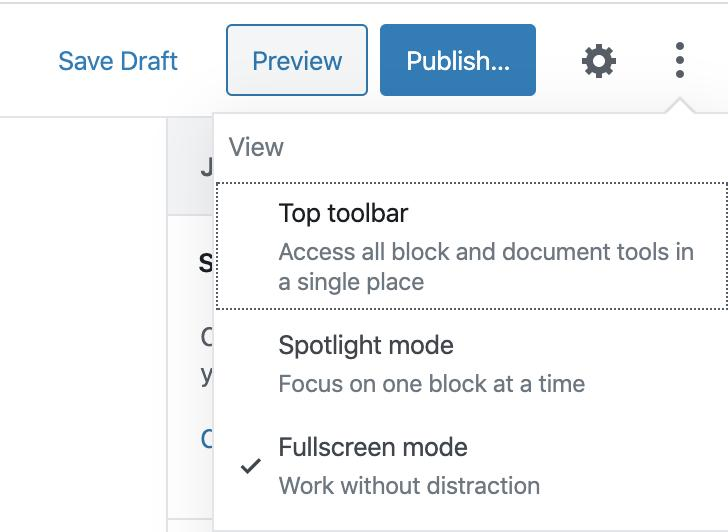
Look at the upper-right corner of the Gutenberg Block Editor. Click the three-dot menu, also known as the Options menu.
Step 3: Find the View Settings
In the menu that appears, locate the View section.
Step 4: Disable Spotlight Mode
Find the Spotlight Mode option and click it to turn the feature off.
Step 5: Return to Your Content
Return to the editing area and check your paragraphs.
The other blocks should now appear normally instead of being visually faded when you select a particular paragraph.
You can continue editing your WordPress article without the visual emphasis applied by Spotlight Mode.
Does Disabling Spotlight Mode Affect Published Content?
No. Disabling Spotlight Mode does not affect the appearance of your published posts or pages.
Spotlight Mode is an editor interface preference. It does not control the typography, paragraph formatting, font color, spacing, or visibility of content on the public-facing website.
Whether the feature is enabled or disabled, your published article retains its normal formatting.
For example, disabling Spotlight Mode will not:
Change paragraph font sizes.
Remove paragraph spacing.
Modify heading styles.
Change image alignment.
Affect Gutenberg block structure.
Alter the published article’s appearance.
Delete or modify existing content.
Its purpose is limited to the visual editing experience inside the WordPress administration interface.
Spotlight Mode vs. WordPress Distraction-Free Mode
Spotlight Mode is sometimes confused with another Gutenberg feature called Distraction-Free Mode.
Although both features are designed to improve concentration during content creation, they work differently.
Spotlight Mode emphasizes the currently selected block while visually de-emphasizing surrounding blocks.
Distraction-Free Mode reduces distractions by hiding certain editor interface elements, giving the content area more visual space.
The differences are important:
Feature
Spotlight Mode
Distraction-Free Mode
Main purpose
Focus on one block
Reduce interface distractions
Selected block
Visually emphasized
No special emphasis
Other blocks
Visually faded
Remain normally visible
Editor interface
Generally remains available
Certain interface elements are hidden
Published content
Unaffected
Unaffected
These features can help different types of WordPress users depending on their editing preferences.
A content creator who frequently edits individual blocks may appreciate Spotlight Mode. Someone who prefers a cleaner writing environment may find Distraction-Free Mode more useful.
Should You Keep Spotlight Mode Enabled or Disabled?
Whether to use Spotlight Mode depends on your editing workflow.
For some users, the feature makes editing easier by reducing the visual prominence of surrounding blocks. This can be especially useful when working on complex Gutenberg layouts containing multiple columns, images, buttons, and other elements.
However, writers who primarily create long-form articles may prefer seeing all paragraphs clearly while editing.
When working on a lengthy article, being able to see surrounding paragraphs can help maintain continuity, identify repeated information, review transitions, and maintain a consistent writing structure.
For this reason, disabling Spotlight Mode can be a more comfortable choice for users who prefer a conventional writing environment.
There is no universal requirement to keep it enabled. It is simply a matter of personal editing preference.
Is Spotlight Mode a WordPress Bug?
No. Spotlight Mode is an intentional Gutenberg editor feature.
Its visual effect can initially resemble a rendering problem, especially when paragraphs appear faded or out of focus. However, this appearance is part of the feature’s intended behavior.
If disabling Spotlight Mode immediately restores normal paragraph visibility, there is generally no reason to investigate browser acceleration, WordPress theme CSS, plugin conflicts, or WordPress core files.
This is an important troubleshooting lesson: not every unusual appearance in the WordPress editor indicates a technical malfunction. Sometimes, the cause is simply an enabled interface setting.
Final Thoughts
WordPress Spotlight Mode is a useful Gutenberg editing feature that helps content creators concentrate on individual blocks by visually reducing the prominence of surrounding content.
However, its appearance can be confusing, particularly for users who expect all paragraphs to remain equally visible while editing.
When paragraphs appear faded or blurred in the WordPress editor, checking Spotlight Mode should be one of the first troubleshooting steps.
Fortunately, disabling the feature requires only a few clicks through the editor’s three-dot menu under View settings.
Most importantly, Spotlight Mode does not affect published content, modify paragraph formatting, or damage WordPress posts. It only changes how blocks are visually presented during editing.
Understanding this simple distinction can save WordPress users considerable troubleshooting time and help them maintain a more comfortable and productive content creation environment.
DNSSEC meaning and how it works DNSSEC, short for Domain Name System Security Extensions, is an advanced set of security protocols designed to add an essential…
BOBRISKY JETS OUT OF NIGERIA AMID LEGAL TROUBLE Nigerian social media personality and influencer, Bobrisky (Okuneye Idris Olanrewaju), recently traveled out of Nigeria amid legal issues. Reports indicate…
NYSC WINDING –UP/PASSING-OUT At the end of the service year (usually at the 12th month) corps members are gathered in their respective zones…
Ede Water Works To achieve abundant flow of pipe borne water across the state, the current administration has been executing projects to reverse…
Shau Shau Iron Smelting Works The Shau Shau iron smelting works in Bauchi State is a sight to behold with the 60 furnaces used to…
OTOBI-OTUKPO WATER WORKS The New Plant Installed Capacity is 10,000m3/day While the Old Plant has Capacity to process and treat 5,000m3/day However the…