ALL FILES ACCESS: UNDERSTAND IT CLEARLY, STAY SAFE
ALL FILES ACCESS CAN RUIN YOU — TURN IT OFF FOR MOST APPS
Modern Android smartphones store enormous amounts of personal information. Photos, videos, documents, passwords, financial records, private conversations, and work files often sit on the same device. While Android includes multiple security protections, one permission can significantly increase your exposure when granted to the wrong application: All Files Access.
Many Android users have never heard of it, yet it can give an app broad visibility into files stored across the device. Understanding how it works and controlling which apps have this permission is a simple security measure that can reduce risk.
What Is All Files Access?
All Files Access is a special Android permission that allows an app to access a much larger portion of your device’s storage than ordinary apps can. Unlike standard storage permissions that restrict access to specific folders or media types, this permission can provide extensive access to files throughout the device.
Some legitimate applications genuinely require this level of access. Examples include:
File manager apps
Backup and restore tools
Device migration utilities
Certain antivirus applications
Essential system services
However, many apps do not need this permission to perform their intended function.
Why It Can Be Dangerous
Every permission granted to an app increases the potential attack surface of your device. If a poorly designed, compromised, or malicious app receives extensive storage access, the consequences can be severe.
A vulnerable app may expose sensitive information to cybercriminals if the app itself is exploited. Attackers often look for weak applications that already possess powerful permissions because they provide a potential pathway to valuable user data.
Potential risks include:
Theft of personal documents
Access to photos and videos
Copying sensitive files
Collection of private information
Monitoring stored data
Increased privacy exposure
While the permission alone does not automatically allow hackers to record calls, eavesdrop, or control a device, granting broad access to untrusted applications can make it easier for attackers to obtain sensitive information if the app becomes compromised.
How to Check Which Apps Have All Files Access
If your operating system is Android, you have a useful security check available.
Follow this path:
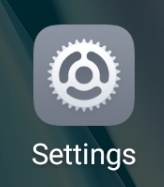
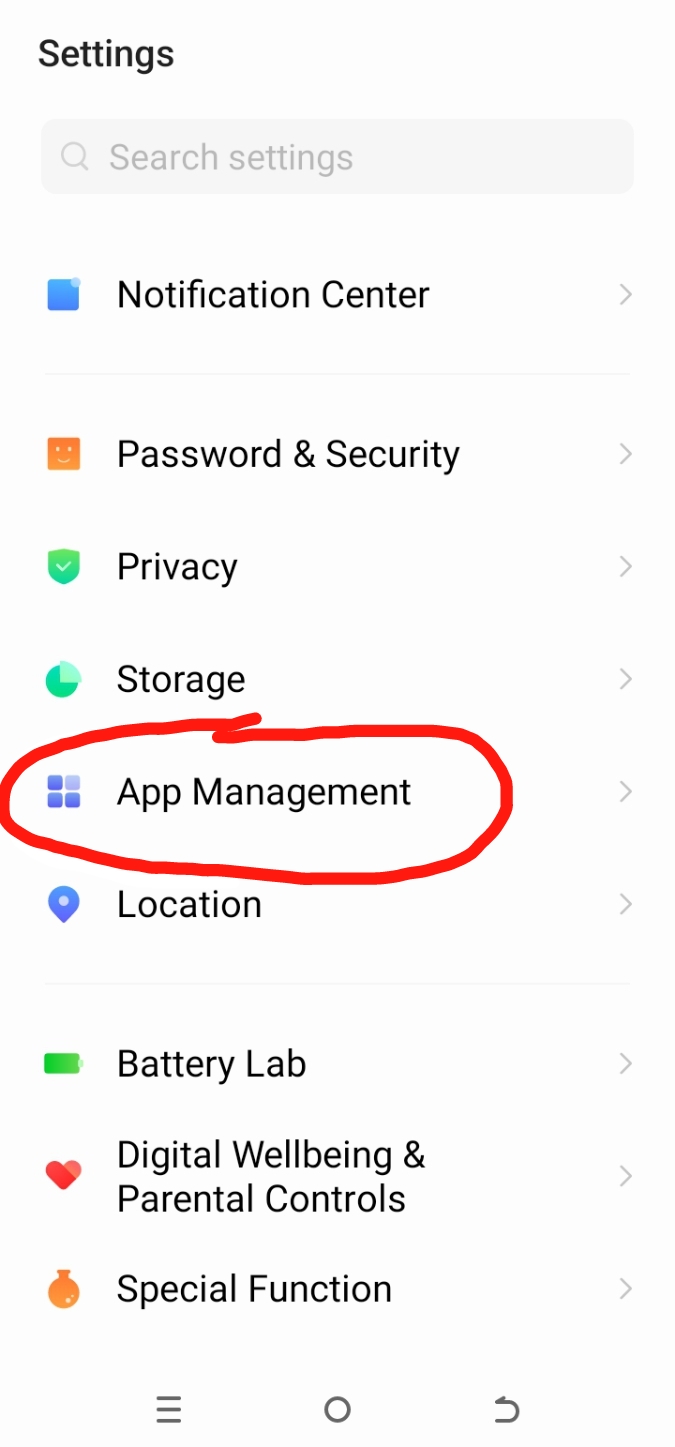
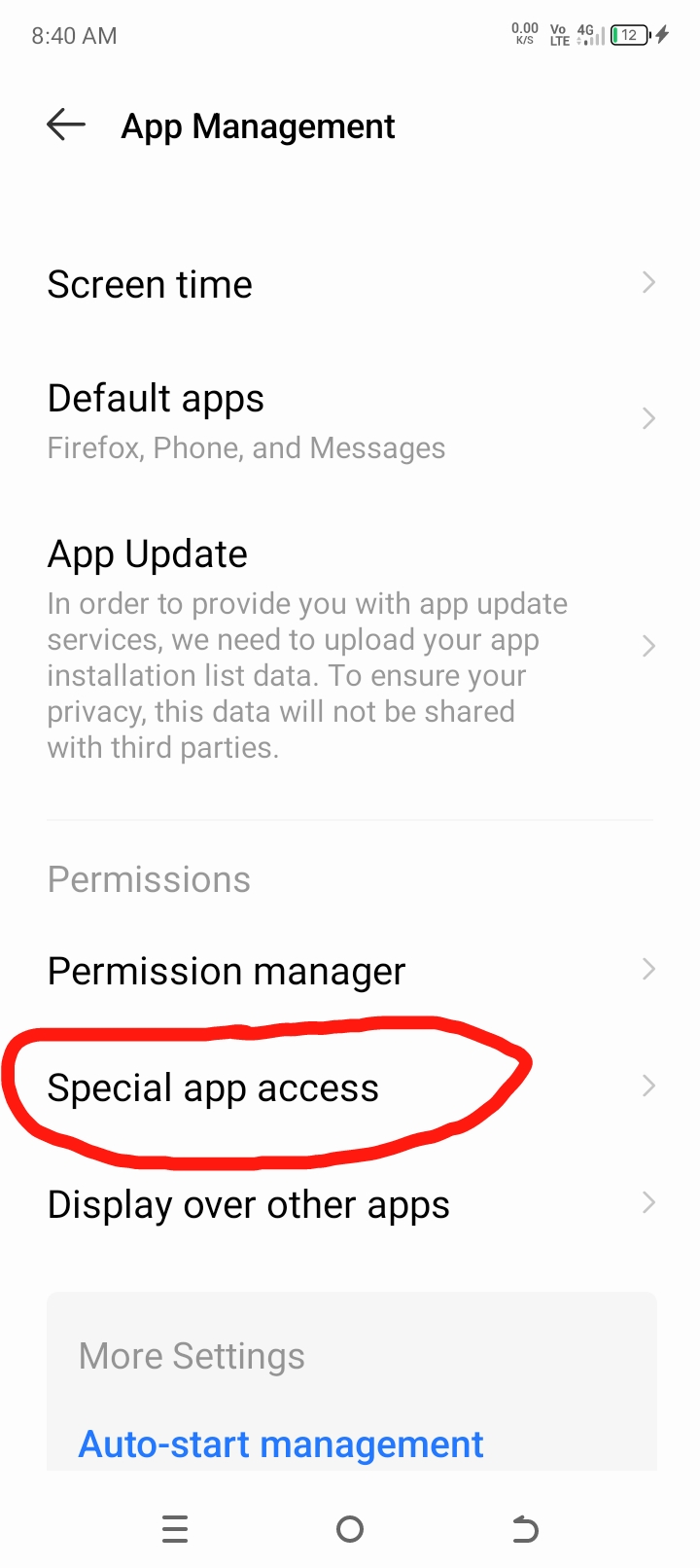
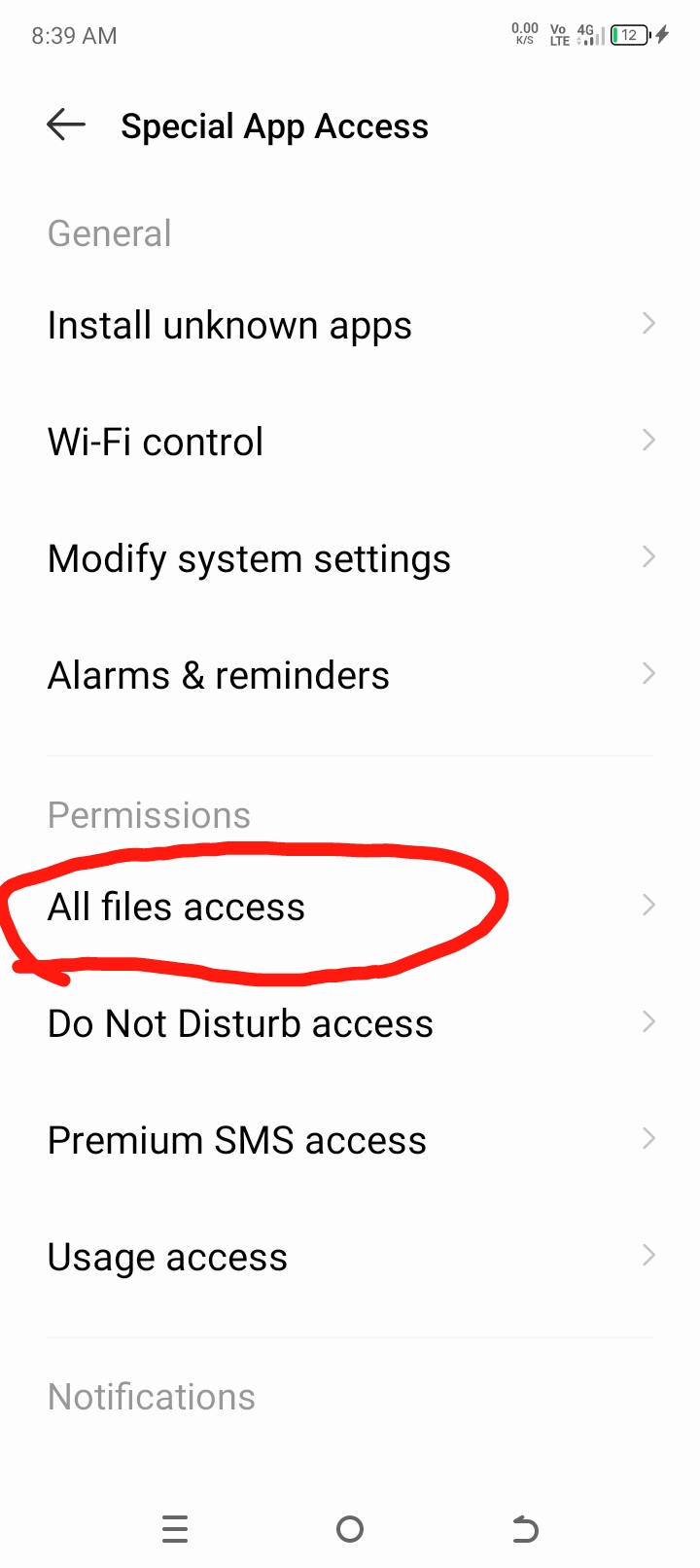
Settings → App Management → Special App Access → All Files Access
Depending on your device manufacturer, the wording may vary slightly. Some phones may display:
Settings → Apps → Special Access → All Files Access
Once you open the menu, you will see apps that currently possess this permission.
The Security Trick Every Android User Should Deploy
Review every application listed under All Files Access.
Ask yourself a simple question:
Does this app truly need unrestricted access to my files?
If the answer is no, disable the permission.
In most cases, social apps, games, flashlight apps, wallpaper apps, simple utility apps, and many entertainment apps do not require broad file access to function normally.
Limiting permissions reduces the amount of information available if an app is later compromised.
Which Apps Should Keep It?
Only retain All Files Access for applications that genuinely require it.
Examples may include:
Trusted file managers
Backup software
Device transfer tools
Essential system applications
Core Android services
System components such as Google services that support core device functions may require elevated permissions depending on the device configuration.
The key principle is simple:
Grant powerful permissions only when there is a clear and legitimate reason.
Additional Android Security Tips
Turning off unnecessary All Files Access permissions is only one part of staying secure.
You should also:
Install apps only from trusted sources.
Keep Android updated.
Remove apps you no longer use.
Review permissions regularly.
Avoid unofficial app stores.
Use strong screen-lock security.
Enable Google Play Protect.
Be cautious with unknown links and downloads.
Many smartphone users focus on viruses and malware while overlooking the permissions already granted to apps on their devices. Yet permissions often determine how much information an application can access if something goes wrong.
Checking the All Files Access setting takes only a few minutes and can help reduce unnecessary exposure of your personal data. Review the list carefully, keep the permission only for trusted and essential apps, and disable it everywhere else. Small security habits like this can significantly improve your privacy and reduce your risk over time.
Uganda: Illness Rates and Unequal Health Access Key findings from Uganda’s 2023/24 health survey, including illness trends, health-seeking behavior, and the rising cost of care. Health Status…
List of All LGAs in Anambra State Aguata Anambra East Anambra West Anaocha Awka North Awka South Ayamelum Dunukofia Ekwusigo Idemili North Ihiala ldemili South Njikoka Nnewi…
List of all Nigerian presidents List of Nigerian Presidents / Heads of States and their Vice from 1960 (when the country got independence) 1. 1st…
LIST OF ALL MINISTERS AND POTFOLIOUS Here’s the list of Nigeria’s ministers appointed by President Bola Tinubu in 2024, along with their portfolios: Bosun Tijani -…
Makurdi Airport: All You Need to Know Makurdi Airport, located along the Makurdi-Gboko road in Makurdi, the capital of Benue State, is an essential transportation hub in…