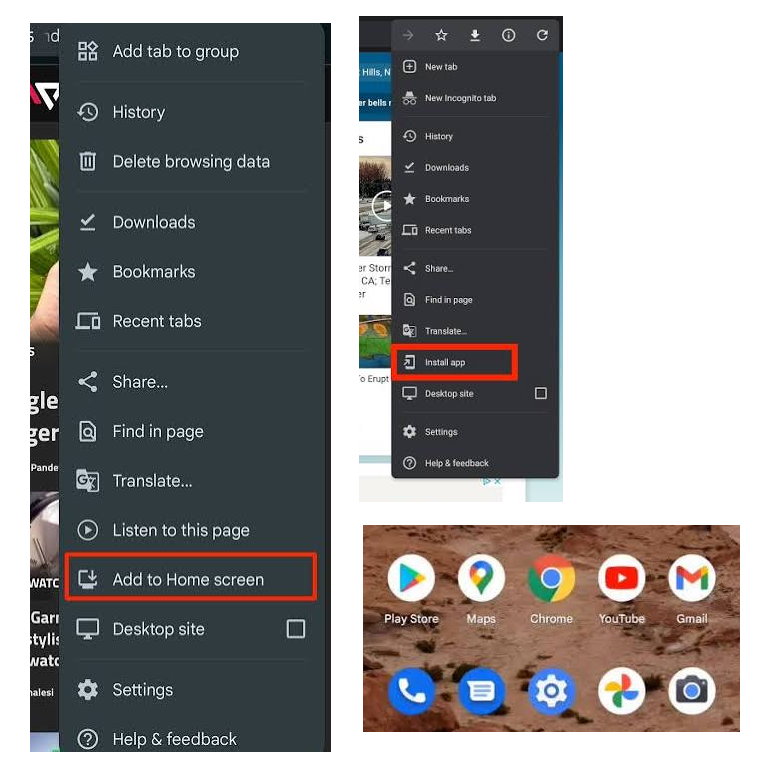
Census PAD app Nigeria’s National Population Commission (NPC) uses a combination of two main apps for data collection for the country’s census. The…
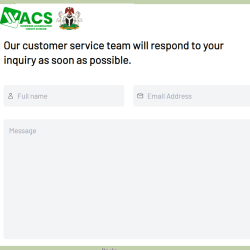
WACS website In order to contact WACS support team for inquiry, to register or do some other tasks, you may wish to…
Central Africa Republic government website The official website of the government of Central Africa Republic is gouv.cf/ Welcome to Government Portal | Government Portal (gouv.cf)…
Cotonou Cadjehoun Airport website The official website of Cotonou Cadjehoun Airport is aeroport-de-cotonou.bj ▶ Accueil – Aeroport de Cotonou (aeroport-de-cotonou.bj) Cotonou Cadjehoun Airport is…
Website addresses of banks in Ethiopia Banks in Ethiopia and their website addresses Awash International Bank www.awashbank.com Commercial Bank of Ethiopia www.combanketh.com Development Bank of Ethiopia…
How to Hotspot Android Phone and Tablet Before you start The phone has working mobile data (open a webpage to check). Both devices are charged, ideally the…
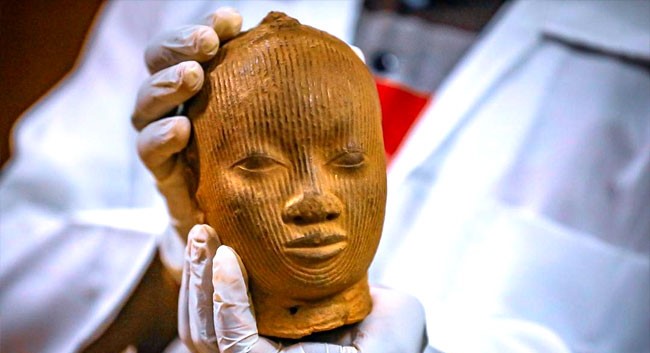
600 Year Old Ife Terracotta Returns Home The National Commission for Museums & Monuments has received a treasured repatriated Ife terracotta head from the Kingdom of Netherlands.…
How to Detox Your Body by Yourself Your body already has powerful detox systems. The best way to support them isn’t through extreme diets, but through everyday…